Create free 3D reference models. Pick a preset pose, combine them with different props, or create your own using the controls on the left.
Upgrade to pro to add more models to the scene

Add handheld props by pressing the prop icon next to the model name
| Chair | |
| Pole | |
| Bar | |
| Bike |

As an artist, you probably have drawn the human body several times and realized how difficult it is to do it all from memory. Especially when you are you are just a beginner or you're just getting into drawing more complex figures like dynamic poses where the body is in movement. When you're drawing the human body, you have to take a lot of different factors into account for the result to end up looking as realistic as possible. Factors such as bone structure, muscles, and other anatomic details are very important but difficult to get right. This is why many artists use references when drawing the human body. These references can be in the form of an image or video but the problem with that is that these aren't adjustable. When you want to draw a specific pose, it can often be hard to find the right reference pictures for example. This is where an adjustable drawing model comes in handy. These adjustable models are also often called drawing mannequins, or drawing figures and are available at most art stores. Unfortunately, though, these wooden mannequins can be quite pricey for beginning artists and are limited in their customizability and adjustability. Luckily, you can now get access to the same drawing mannequins but online and completely for free! Online drawing models like the one above are the perfect tool for every artist looking to practice drawing human figures or dynamic poses. Simply adjust the body parts by dragging them and rotate or move them along another axis by pressing the other movement selectors on the left side of your screen. If you don't want to take the time to create a pose, you can also use one of the preset poses on the right side of your screen or go to the pose library. In the same menu, you can even select one of the many props for the model to interact with, or try out different models like the anime model, making your poses even more interesting!
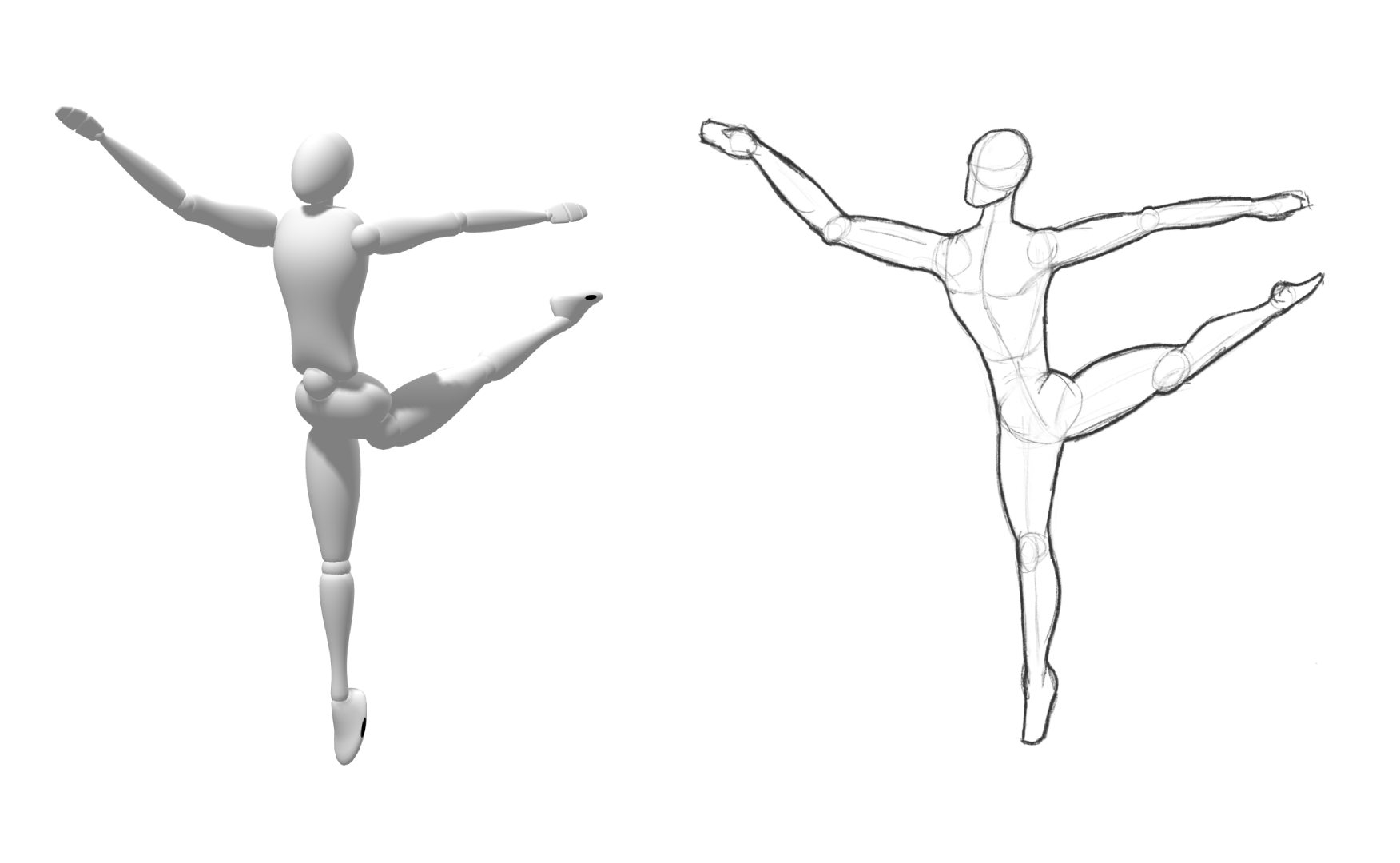
Ballet arabesque pose preset
Using the mannequin, you should start with trying out some simple poses to get used to adjusting the body parts and using all the different movement controls on the left.
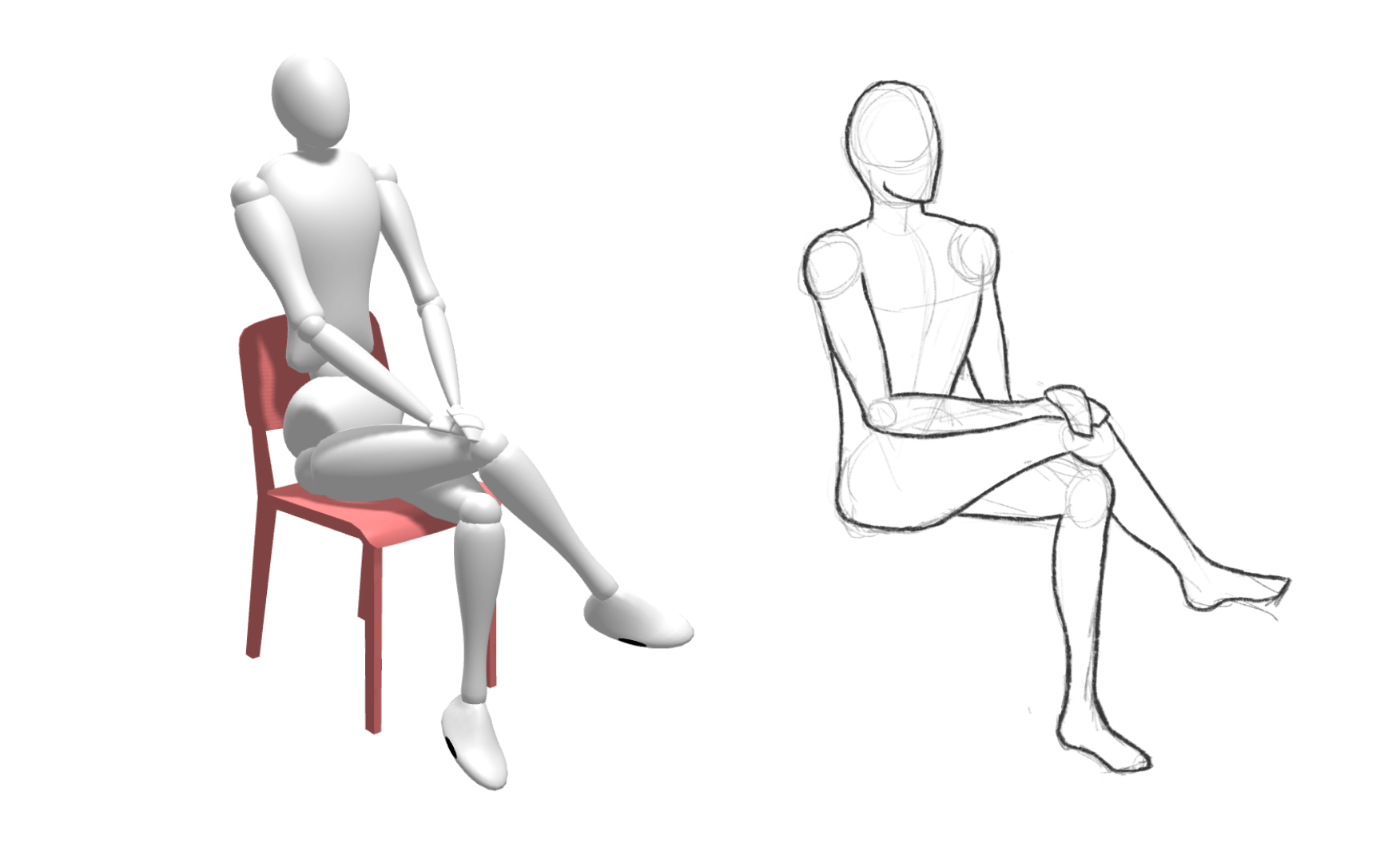
Chair prop and sitting 2 pose preset
After you've gotten used to the controls, you can try out adding some basic props to the scene. You can select a prop like the chair, for example, and use it to create different sitting poses.
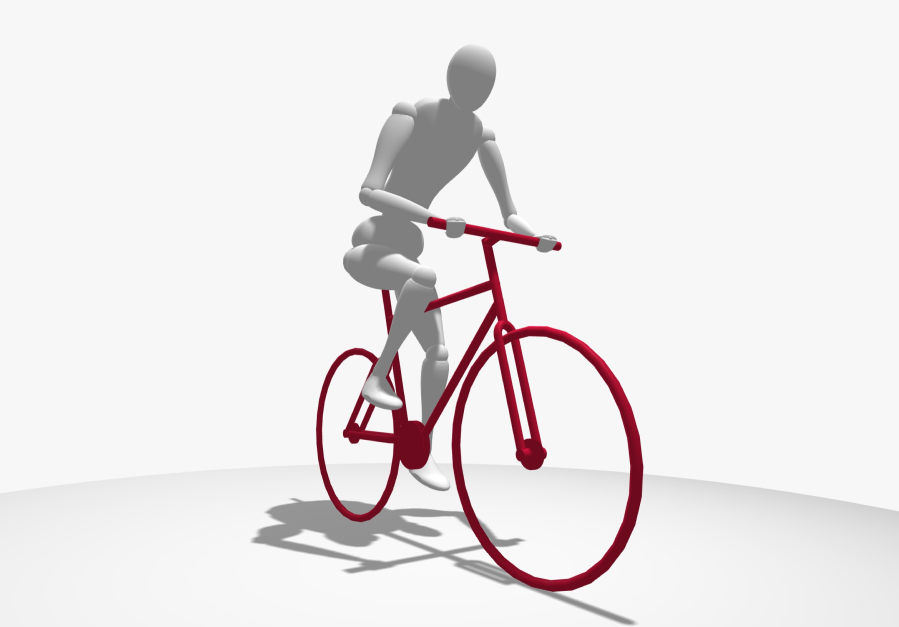
Bike prop and cycling pose preset
You can also use one of the more interactive props like the barbell or the bike to create more dynamic poses.
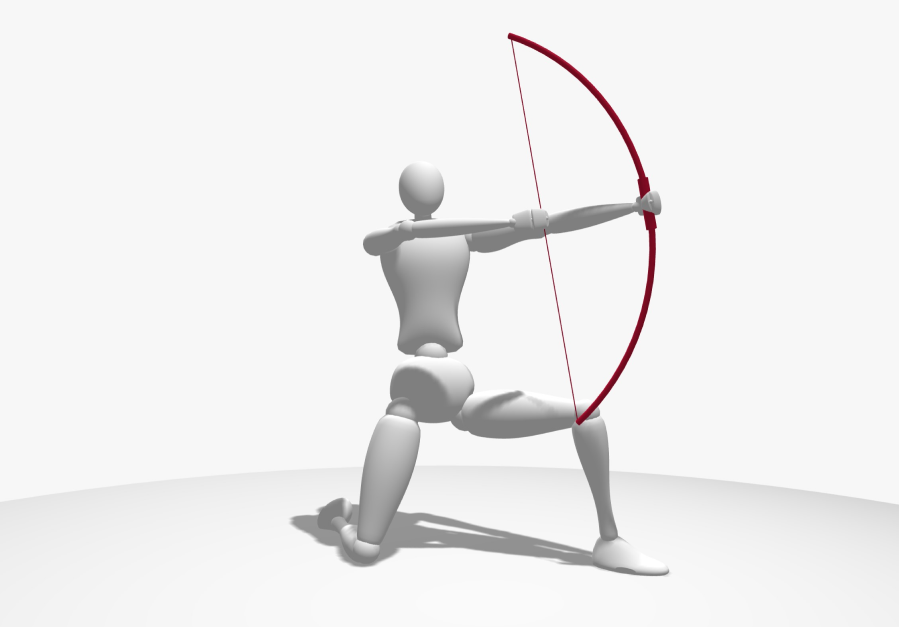
Bow prop and archery preset
The prop menu also has a ton of different hand props to choose from. You can put them in the model's left or right and you can even combine them to have the model holding something in each hand. If you want to go even further, you can even combine a ground prop like the bike with multiple hand props!
SetPose.com uses Three.js and Mannequin.js
Anime model by ALexZ art