BendForward-backward
E.g. nodding head or bending armShortcut: Z
TiltSide-to-side
E.g. tilting head or raising arm laterallyShortcut: X
RotateE.g. turning head or rotating wristShortcut: Y
Move up or downShortcut: M
Move across the floorShortcut: S
Undo model editShortcut: Ctrl + Z
Use the controls to move the model's limbs in different directions

Welcome to SetPose!

Here's a quick demonstration of the basic controls to help you get started. Find this and more tutorials on SetPose guides

Bend iconBend: Changes angle between parts

Tilt iconTilt: Side-to-side or spreading movements

Rotate iconRotate: Turns a part around its own axis

Scene and Model Settings

Create 3D pose reference models. Pick a preset pose, combine them with different props, or create your own using the controls on the left.

Scene

Scene

Upgrade to pro to add more models to the scene
Remove ads: Upgrade to Pro

Remove ads: Upgrade to Pro

About SetPose.com

SetPose: Free 3D Pose Maker — Mannequin Drawing Poses

Are you an artist looking for accurate, adjustable 3D pose references? SetPose is a free online pose maker and digital mannequin designed to help you practice drawing human poses and dynamic poses with ease. Whether you're a beginner or an experienced artist, using a pose reference tool can dramatically improve your understanding of anatomy, proportions, and movement.

Why use a 3D pose maker?

Drawing the human body from memory is challenging. Realistic figure drawing requires attention to proportions and the way perspective and light changes the way we view a figure. Traditional wooden mannequins offer limited pose options and detailed ones can be quite costly. SetPose offers a free and highly customizable online drawing mannequin to meet all your reference needs.

SetPose isn't just a mannequin in online form as it offers a lot more customization in terms of the models, but maybe even more importantly, the environment around the model.

After you have made your desired pose with the pose maker or picked one of the many preset poses, you can start to set the scene according to your wishes. Change the background color and adjust the light position to create a night setting, or change the camera FOV to create a more dynamic scene. After that, you can also pick one of the floor props to add to the scene, creating even more interesting visuals to work with.

How to use the SetPose pose maker

The SetPose scene always starts off with a basic model in the default pose. From there, in order to create your first pose, you can either start editing or pick one of the many preset poses in the panel on the right side of the screen. If you want to start with a different model such as the anime model, you can change it by clicking the selector in the scene menu on the right side of the screen.

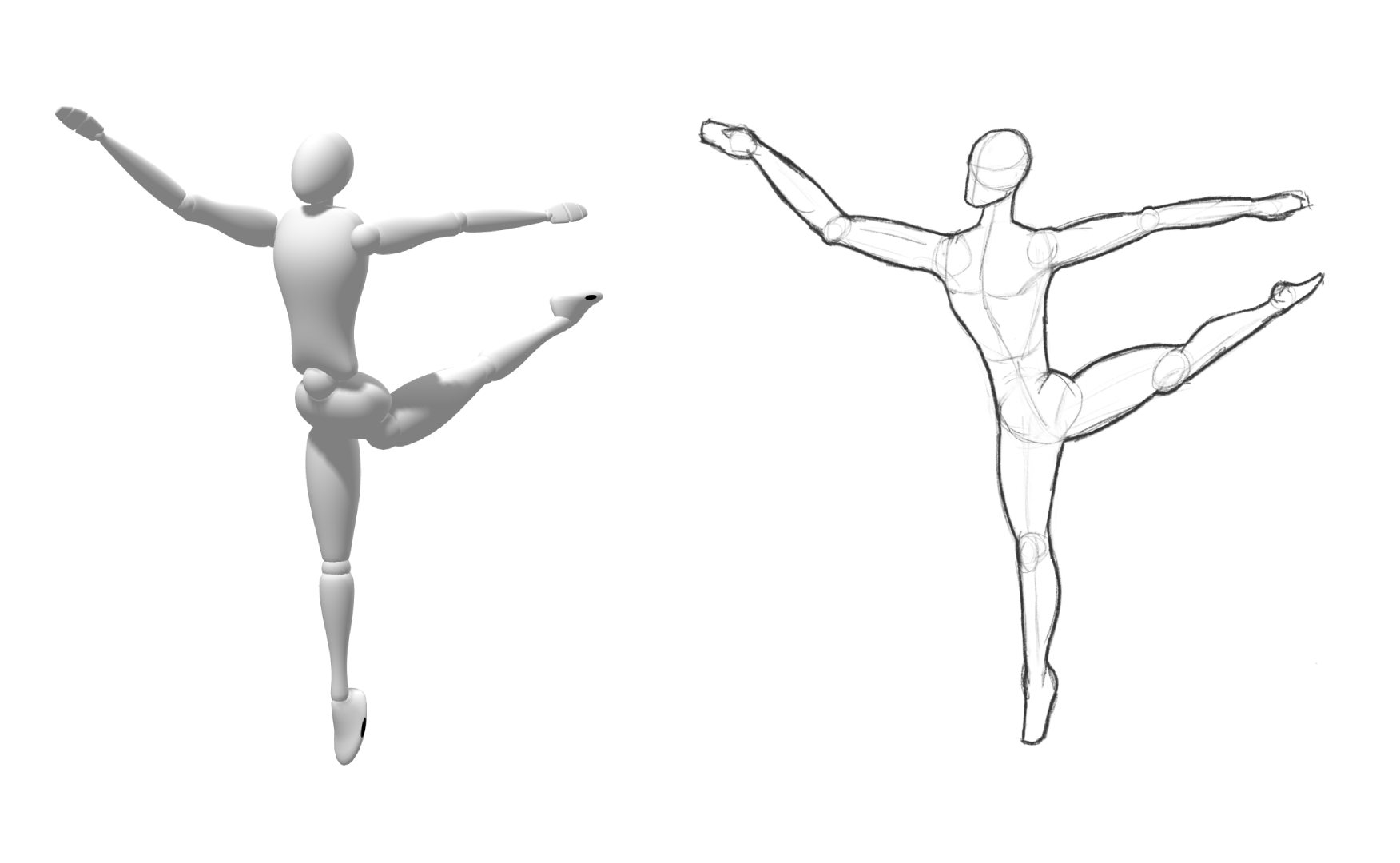
Reference pose model in a ballet position

Ballet arabesque pose preset

Creating your own pose

To start making your first pose, use the camera to look around the model and simply drag one of the limbs. At first, the "bend" control will be selected. This means that you can bend parts such as the arms and the legs forwards and backwards. The second control button (at the left side of the screen), "Tilt", will allow you to move the arms or legs to the side. Sometimes you'll also need to use the "Rotate" control to rotate the arm at the shoulder or leg at the hip.

Using these controls, you can make any pose you can imagine. If you find that the constraints are limiting you in creating your pose, you can also turn it off in the model settings under "Biological constraints". This will allow you to bend or rotate the body parts beyond the natural limits.

Adding handheld props to your pose

SetPose also makes it easy to add all kinds of props to your model's hands or scene. To add a handheld prop, simply go to the scene menu in the panel on the right side of your screen. Next to your model name ("Basic model" by default) you'll see a prop icon which will open the prop selector when clicked. There you can pick a prop for either the left or right hand of the model. These props will stay in the hand of the model when you change poses.

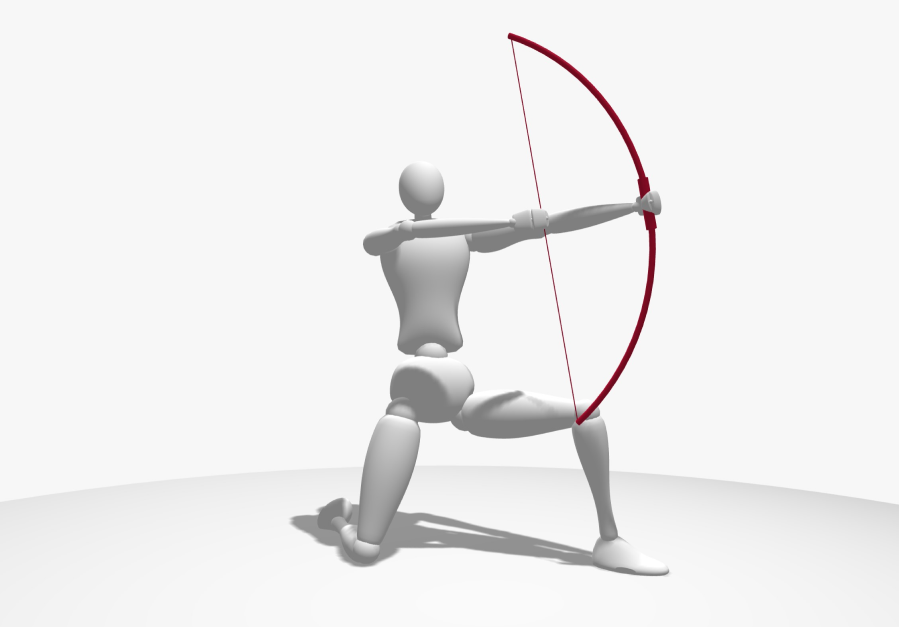
Reference pose model kneeling and holding a red bow

Bow prop and archery preset

Create the perfect scene using floor props

If you're looking to create a more visually interesting scene, you can also choose to add some floor props. Under the floor props menu on the right side of the scene, you can pick a prop by simply clicking it. You can then drag it around on the floor to change its position or, using the "Rotate" control, change the direction the prop is facing.

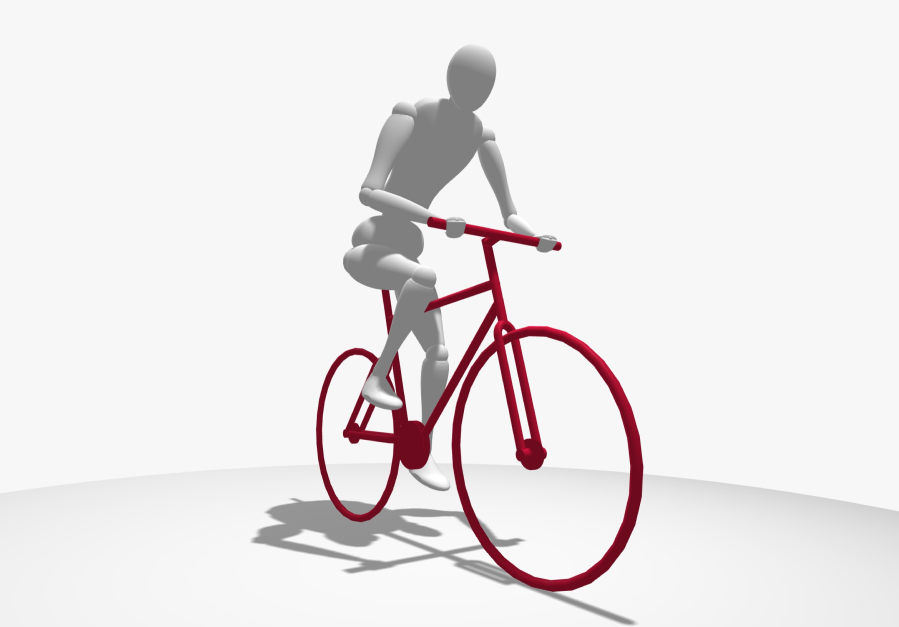
Reference pose model riding a red bike

Bike prop and cycling pose preset

Change the camera and lighting

The camera and lighting settings can be the most important to the look of your scene depending on what you are looking for. The camera and lighting settings can also be found on the right side of the screen, under the camera and environment menu. There you can drag the light position around your model or change the distance of the light to precisely set how the shadows are cast. Lastly, you can also play with the perspective of your scene by increasing the field of view (FOV) of the camera.

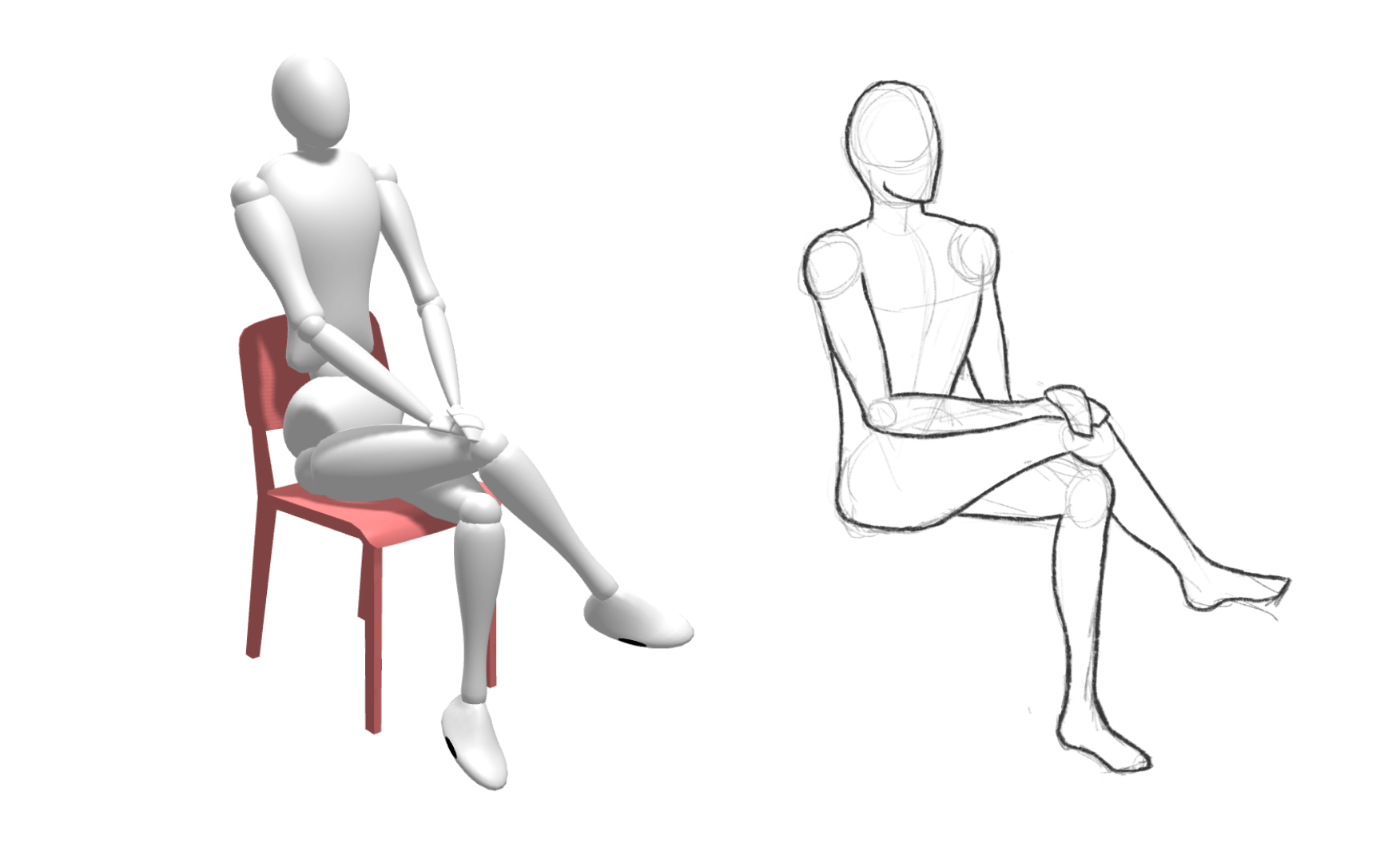
Reference pose model sitting on a red chair and a drawing of the pose

Drawing of the basic model with the chair prop and 'sitting chair 2' pose preset

Drawing poses using SetPose as a pose reference

After you're finished setting up your pose and completed the scene, you can use SetPose for your intended purpose. Whether it's creating a yoga routine, character design or simply creating reference material for a drawing, SetPose is the perfect platform for creating pose references. Most of SetPose's users use the pose editor when drawing poses as it is the easiest way to create pose references that can be hard to draw off the top of your head.

To start with your artwork, simply take a screenshot and either paste it in your digital drawing software or leave it up on a screen if you're drawing on paper. The best way to get better at drawing using reference poses is to not directly trace the created pose but to look carefully, draw and compare. It will train you to get better at putting the things you see on paper. If you are a complete beginner, however, it may be more helpful to start with tracing the pose reference and gradually move towards drawing poses just by the visual reference.

SetPose.com uses Three.js and Mannequin.js
Anime model by ALexZ art